

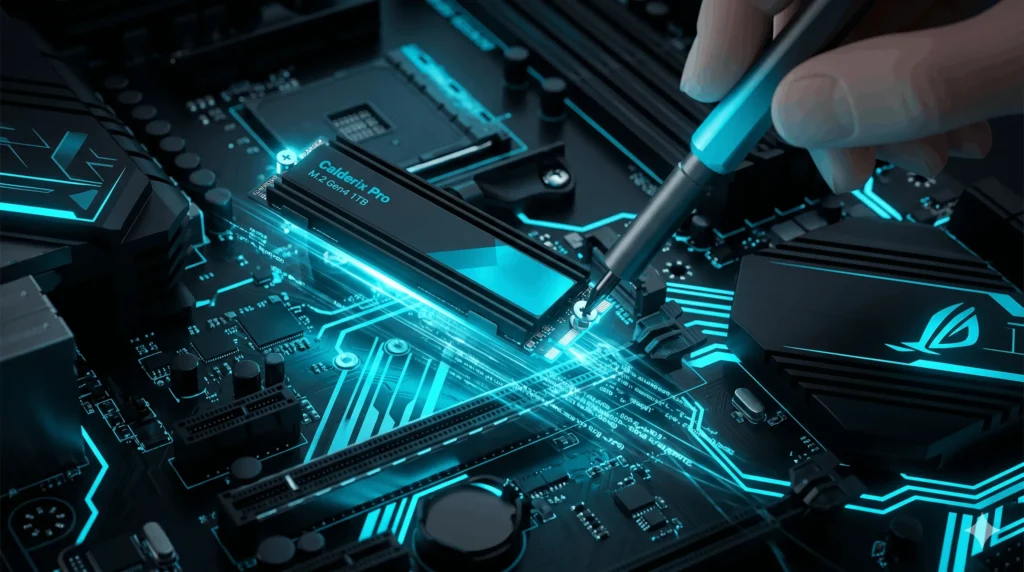
If you have never swapped your old hard drive or SATA SSD for a proper NVMe drive, you are in for a genuine shock. This isn’t a minor tweak; it’s the kind of performance jump where you boot your laptop and reach the desktop before the loading screen even registers.
NVMe SSDs are no longer exotic or expensive. A solid 1TB NVMe drive costs under $80 in 2026, yet millions of perfectly capable laptops and desktops are still running on spinning hard drives or aging SATA SSDs from five years ago, slowly grinding their owners into frustration. This guide is for those people—offering the kind of honest advice we’d give a friend.
Why NVMe Changes the Way You Work
NVMe stands for Non-Volatile Memory Express—a communication protocol designed specifically for solid-state storage. Unlike your old Hard Disk Drive (HDD) which relies on mechanical spinning platters, NVMe communicates directly through your motherboard’s PCIe lanes.
Your old hard drive maxes out at about 600 megabytes per second. A decent NVMe SSD on a PCIe 4.0 connection performs at 5,000 to 7,000 megabytes per second. In day-to-day use, this means Windows boots in 8-12 seconds instead of nearly a minute, applications launch instantly, and large files move in the blink of an eye. If you’re currently browsing modern SSD options, NVMe is the gold standard.
Breaking the Speed Barrier
While legacy interfaces hit their limits years ago, NVMe continues to push the boundaries of modern computing. For detailed performance benchmarks, resources like Tom’s Hardware provide excellent technical breakdowns of these protocols.
Technical Check: M.2 Slot Compatibility
Before buying, you must verify your hardware. Not all M.2 slots are created equal; some support only SATA M.2, while others support NVMe. To identify exactly what drive you currently have, we recommend using a free tool like CrystalDiskInfo.
- Physical Size: Most laptops require the 2280 form factor (22mm wide, 80mm long).
- The Key: Look for “M Key” or “B+M Key” slots in your laptop’s service manual.
- The Lane: A PCIe 4.0 drive will work in a 3.0 slot, but it will be capped at 3.0 speeds.
Picking Your Drive Generation
In 2026, pricing has normalized, making high-speed storage accessible for every budget:
- PCIe 3.0 (Budget): Drives like the Samsung 970 Evo Plus or WD Blue SN570 deliver 3,500 MB/s at $50-$70 per 1TB.
- PCIe 4.0 (Performance): The Samsung 990 Pro and WD Black SN850X are the current champions for gaming and creative work, ranging from $75-$110.
- PCIe 5.0 (Workstation): Blazing speeds for AI data ingestion and large-scale database operations, though they require specific thermal management.
Understanding Potential Bottlenecks
An SSD solves storage-related slowness. However, if your computer is lagging because of an outdated Processor or insufficient RAM, an SSD upgrade will not fix those specific hardware bottlenecks. RAM and CPU-related issues require separate hardware solutions.
The Installation Blueprint
Installing an NVMe drive is a straightforward process that anyone can handle with a Phillips head screwdriver (PH0 or PH1) and a plastic pry tool.
This is not optional. Before you touch a screw, back up your data to the cloud or an external drive. Laptops can occasionally have surprises like stripped screws or hidden clips—be prepared.
Open the laptop and locate the M.2 slot. Insert the NVMe drive at a 30-degree angle into the slot. Press down firmly and secure the tiny retaining screw. This screw is critical to prevent the drive from flexing and causing connection issues.
You can clone your existing drive using software like Macrium Reflect to copy your Windows installation instantly, or perform a fresh Windows installation via USB for a cleaner slate.
Frequently Asked Questions
Ready to Upgrade in Houston?
Visit Calderix Technologies for the latest NVMe storage, High-Performance GPUs, and networking gear.
Location: 1919 Taylor Street STE F, Houston, TX 77007
Contact: (832) 924-0490 | WhatsApp: (713) 794-6862